Inventaris
The stock catalog: stores and items
Stores are where stock lives and items are what the house buys — grouped two levels deep, and counted in the base unit you set here.
Terakhir diperbarui
Who this is for: Storekeeper, Manager, Owner — reading the catalog requires
inventory.catalog.read; adding, editing or archiving a store or an item requiresinventory.catalog.write. Where: Inventory → Catalog
This is the reference data the rest of Inventory is built on. A store is a place stock sits. An item is a thing the house buys. Nothing else in the section works until both exist: a purchase order needs a store to deliver into and an item to order.
The screen has two tabs — Stores and Stock items — because they are two faces of one catalog and you work one at a time. Stores is the default.
Add a store#
- Open the Stores tab.
- Type the store's Name.
- Type a short Code, if you use one.
- Select Add.
The store appears in the list underneath, immediately available to every other screen in the section.
Stores are places, not departments. A dry store, a bar cellar and a linen room are three stores; the kitchen that draws from them is a department, and departments are typed in when you issue stock, not defined here.
Tips
Split stores where you would count separately. Stock is valued per store × item, so two stores holding the same item hold it at their own cost and count independently. If you would never walk the two rooms with a clipboard on separate evenings, make them one store.
Add a stock item#
An item carries two units and the conversion between them. Get this right on the first day; it is the number every quantity in the section is expressed in.
- Open the Stock items tab.
- Type a SKU — your own code for the item. It must be unique in this property.
- Type the item's Name.
- Choose the Main group and the Sub group.
- Set the Base unit — the unit you use it in:
g,ml,each. - Set the Purchase unit — the unit you buy it in:
bag,carton,case. - Set Base units / purchase — how many base units are in one purchase unit.
- Select Add item.
The item lists under its name with the conversion and its groups spelled out beneath it: BEV-WTR · 1 case = 24 bottle · Beverage › Soft drinks.
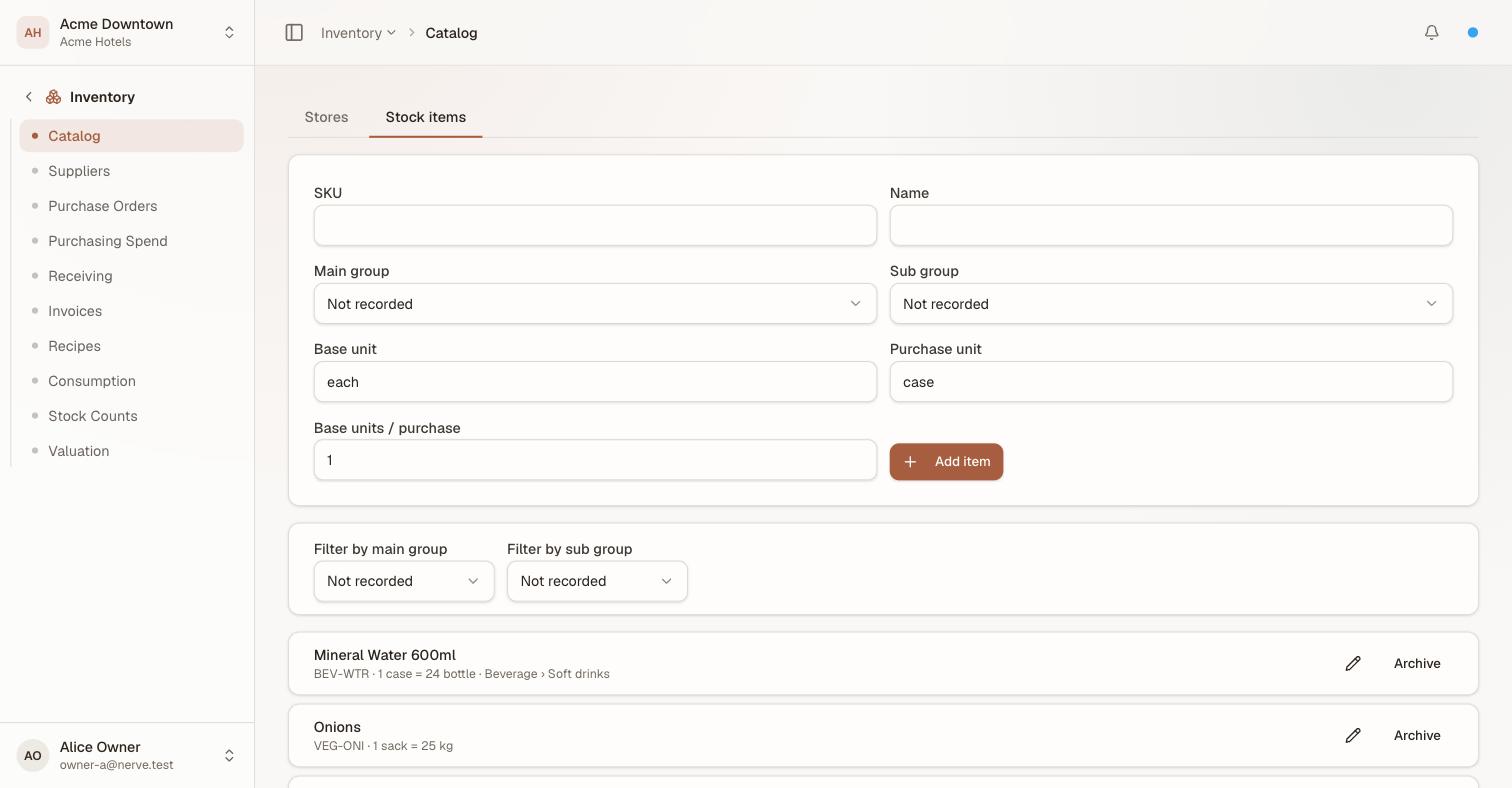
The conversion and the grouping on one grey line. One case is twenty-four bottles from here on, and the item lives under Beverage › Soft drinks wherever stock is grouped.
Penting
Everything after this screen is in base units. You order in purchase units — 10 cases — and receiving multiplies by the conversion, so 240 bottles arrive. Recipes, issues, counts and the valuation report are all in base units. An item whose conversion is wrong is not a labelling mistake; it is a costing mistake, and it compounds with every delivery.
Pick base units small enough to measure with. A recipe that needs 18 g of coffee cannot be written against an item whose base unit is bag.
Group items two levels deep#
Every item carries a main group and a sub group — Beverage › Soft drinks, Food › Meat & seafood, Housekeeping › Linen. Both come from your house's own reference lists, so the sets below are the defaults rather than a fixed taxonomy:
| Main group | Sub groups it typically carries |
|---|---|
| Food | Dry goods, Produce, Dairy, Meat & seafood |
| Beverage | Soft drinks, Spirits & wine |
| Housekeeping | Linen, Guest supplies, Cleaning chemicals |
| Engineering | Spare parts |
| Stationery & printing, Other | Other |
Two levels rather than one is what makes the grouping useful at both ends: a food-cost figure needs Food as a whole, and a purchasing conversation needs Produce on its own. Filter by main group and Filter by sub group sit above the item list, and the same grouping is what purchasing and valuation roll up by.
An item can be left at Not recorded on either level; it simply groups under nothing.
Edit an item#
Select the pencil on an item's row. The dialog lets you change its name, main group and sub group.
Penting
The unit conversion is deliberately not editable.
base units / purchaseis the number every historic receipt already used to turn cases into bottles — changing it after the fact would silently restate quantities that already happened, and a valuation you cannot reconstruct is worse than a badly-named item. If a conversion is genuinely wrong, archive the item and add a corrected one.
The SKU is likewise fixed: it is what past documents point at.
Archive a store or an item#
- Find the row.
- Select Archive.
The name goes struck through, and an item also picks up an archived badge. Nothing is deleted: past orders, receipts, issues and counts keep pointing at it, and its stock keeps its value.
What archiving does is keep it out of new documents. Restore puts it back.
There is no delete, deliberately. A stock item is referenced by every movement it was ever part of, and a catalog you can delete from is a valuation you cannot explain.
What is not on this screen#
Stock is not entered here. There is no opening-balance field. Stock arrives by receiving a purchase order, or by posting a count that finds more than the books expected — and stock found by a count on an item with no history is valued at zero, so receiving is the honest way to open a store.
Reorder points are not here either. A minimum on hand is per store as well as per item, so it lives on Valuation → Reorder points, next to the on-hand figure it is judged against.
What's next#
- Suppliers and price lists — who sells you these items, and at what price
- Raise a purchase order — the first document that uses both tabs
- Stock valuation and reorder points — where the items you just defined turn into money, and where minimums live
- Reference data — maintaining the main-group and sub-group lists