คลังสินค้า
Raise a purchase order
Raise an order with its credit term and requesting department, approve it, send it, print it, and reopen a closed one when you have to.
อัปเดตล่าสุด
Who this is for: Storekeeper, Manager, Owner, Accountant — reading the list requires
inventory.po.read; raising, sending or cancelling an order requiresinventory.po.write; approving one requiresinventory.po.approve. Where: Inventory → Purchase Orders
A purchase order is the house's commitment to buy something. It is also the document every later step is checked against: goods are received against an order, and a supplier's invoice is matched against what that order actually delivered.
An order moves through these states:
draft → pending approval → approved → sent → partial → closed
and can be cancelled from anywhere before it closes.
Raise a purchase order#
- Select New purchase order.
- Pick the Supplier.
- Pick the Store the goods will be delivered into.
- Type your own Reference for the order, if you use one.
- Set the Credit term (days), or leave it blank to take the supplier's default.
- Name the Requesting department, or leave it as Nobody in particular.
- Pick the Item on the first line.
- Type the quantity, in the item's purchase unit — bags, not grams.
- Type the Unit price, or leave it blank to take the supplier's price list price.
- Select Add line for each further item.
- Select Create PO.
The order lists as draft, with the supplier, your reference and the order total.

Ten bags and twenty cartons, in purchase units. Both Unit price fields are empty on purpose: leave them and the supplier's price list fills them in.
สำคัญ
Quantity is in purchase units, and the store cannot be changed later. Ten bags of coffee is
10, not10000— receiving does the conversion. The store is fixed at creation: an order raised into the wrong store has to be cancelled and raised again, because the stock has to land somewhere the count will look.
The total is worked out from the lines every time it is displayed, so it is never stale and there is nothing to recalculate.
Read the terms line#
Each order carries a line stating what was agreed and who asked for it:
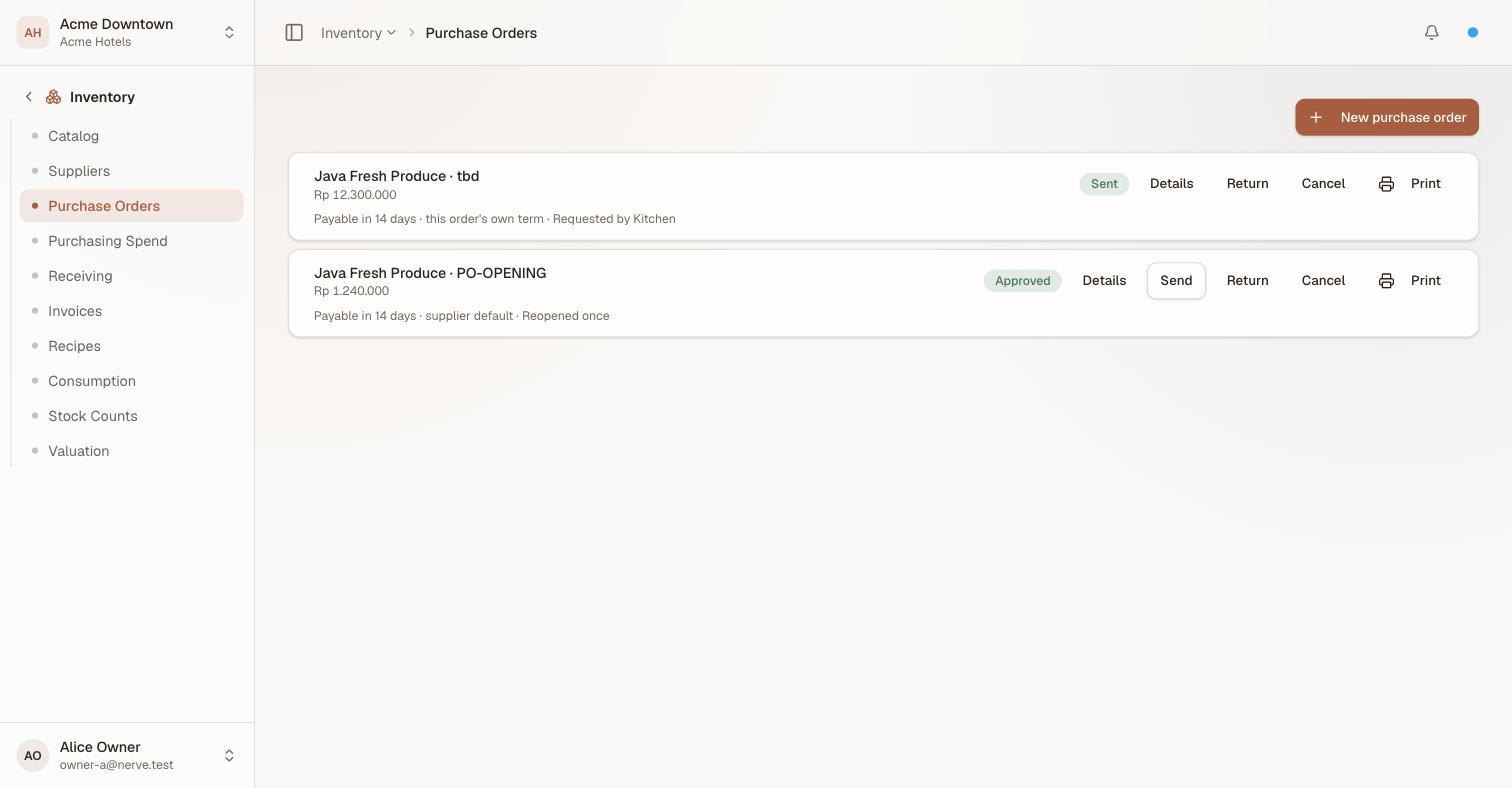
Two orders on the same supplier's 14 days — but one of them said so itself and the other inherited it. The line says which.
| Part | What it tells you |
|---|---|
| Payable in N days (or Payable on <date>) | When the money is due |
| this order's own term / supplier default | Where that term came from |
| Requested by <department> | The cost centre that asked for it |
| Reopened once / Reopened N times | This order has been unlocked after closing |
The provenance of the term is shown, not just the term. Two orders can both say payable in 14 days while only one of them agreed it — and when the supplier changes their standard terms, the inherited one moves and the negotiated one does not. Reading a bare "14 days" would not tell you which order you are looking at.
Requesting department is what makes Purchasing Spend able to answer "what did the kitchen commit this month". An order nobody attributed reads No requesting department there rather than being quietly dropped.
See the lines#
Details expands the order in place to show each line: the item, the quantity, the unit price, the extended amount, and how much of it has been received so far.
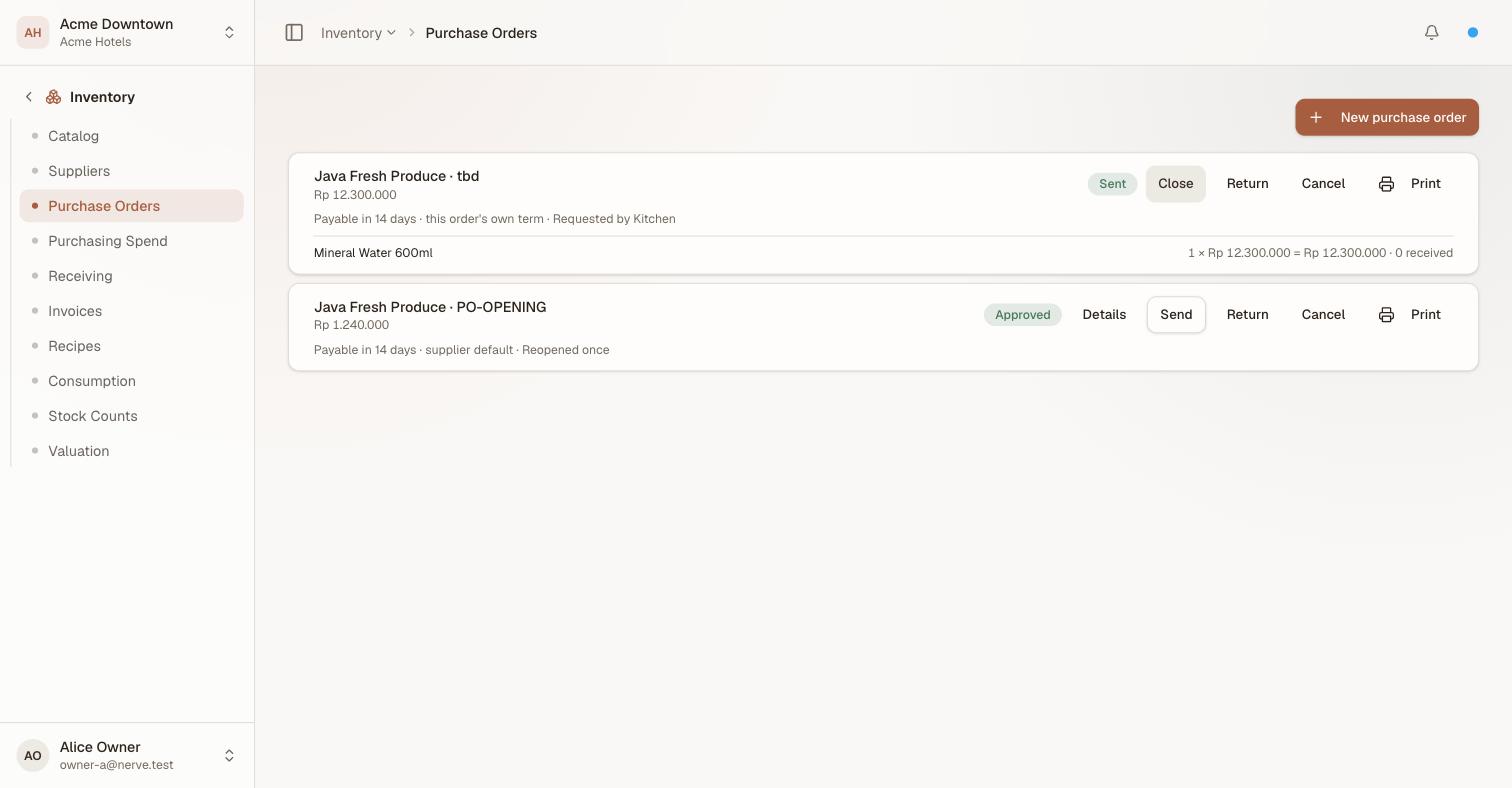
The received figure is the one worth having on the line: it is what turns "this order is partial" into "this specific item is what we are still owed".
Close collapses it again.
Approve an order#
- Find the draft order.
- Select Approve.
The badge turns approved and who approved it is recorded against the order.
This is a real gate, not a workflow suggestion. Until an order is approved:
- Send does not appear on it.
- It does not appear on Receiving at all.
- An attempt to send or receive it anyway is refused outright:
a purchase order must be approved before it can be sent or received.
Submit moves a draft to pending approval — a queue marker for a house where the person raising orders is not the person approving them. It is optional: Approve is offered on a draft too, so a Manager raising their own order can approve it in one step without pretending to hand it to themselves.
Approving is the one action in this section that a Storekeeper cannot do. inventory.po.approve sits with the Manager, the Owner and the Accountant — the same split as approving a bill in Accounting.
Send an order to the supplier#
- Find the approved order.
- Select Send.
The badge turns sent and the time is recorded.
Sending marks the order, it does not transmit it. Send is how you record that the order has left the building, so that an order still sitting at approved is visibly one nobody has placed yet.
Sending is optional. An approved order can be received against directly — useful when the goods arrive with the driver who took the order.
Print an order#
Print produces the order as a document — the copy that goes to the supplier, or into the file. It carries the lines, the terms and the requesting department.
Reopen a closed order#
Sometimes a closed order has to be corrected: a receipt was keyed against the wrong line, or a delivery turned up after the order closed itself.
- Find the closed order.
- Select Reopen.
- Read the warning, then confirm with Reopen anyway.
The order goes back to accepting receipts, and it carries Reopened once — and then Reopened N times — from then on. The count is permanent and deliberate: an order that has been unlocked repeatedly is a fact an auditor should be able to see without reading a log.
ข้อควรระวัง
If the order's invoice has already been billed, reopening it lets receipts change something the books have already paid for. The confirmation says exactly that, and it names the consequence rather than asking "are you sure". Tell Accounting when you do it — the correction on this side has a matching one on theirs.
Return goods to the supplier#
Return raises a return-to-vendor against the order: goods that arrived and are going back — damaged, short-dated, wrong item. See receiving and returns.
Read the status badges#
| Badge | Means | What it offers |
|---|---|---|
| draft | Raised, committing nothing | Submit, Approve, Cancel |
| pending approval | Waiting on someone with the approval permission | Approve, Cancel |
| approved | Cleared to leave and to be received against | Send, Return, Cancel, Print |
| sent | Recorded as placed with the supplier | Return, Cancel, Print |
| partial | Some of it has arrived, some is still owed | Return, Cancel, Print |
| closed | Every line fully received | Reopen, Print |
| cancelled | Abandoned |
partial and closed are set by receiving, not by you: an order closes itself the moment its last outstanding unit is received.

The buttons are the status. A draft offers three things to do with it; an order half-delivered offers what is still decidable about it.
Cancel an order#
- Find the order.
- Select Cancel.
Cancelling is available right up until an order closes — including on a partial order, which is how you abandon the tail of a delivery a supplier is never going to complete. It does not reverse anything already received: the stock stays, at the cost it came in at, and the order stops asking for the rest.
A closed or already cancelled order cannot be cancelled again.
What's next#
- Receive goods — the next link in the chain, and returns to vendor
- Purchasing spend — what each department committed and received
- Suppliers and price lists — where a blank unit price and the default credit term come from
- Inventory overview — the whole order-to-payable chain in one place