แผนกต้อนรับ
Work orders and preventive schedules
Log the work behind a broken object with its urgency, location and photos, move it through open/in progress/completed, pause it when it is blocked, and generate the preventive jobs a schedule is due for.
อัปเดตล่าสุด
Who this is for: Front Desk, Manager, Owner — requires
frontdesk.room.blockorengineering.maintenance.manage. Where: Engineering → Work Orders (the worklist) · Settings → Engineering → Maintenance (standard durations and preventive schedules)
A room going out of order is only half the story — taking the room off the market says nothing about why, who is fixing it, or how long it should take. Engineering → Work Orders is where that half lives: what broke, how urgent it is, where it is, who owns it, how it is progressing, and — for the work that repeats on a schedule rather than waiting for a complaint — when it is due again.
A work order does not create its own room block. If the job takes a room out of service, it is booked through the same conflict-checked room-maintenance flow; the work order simply records which block it belongs to.
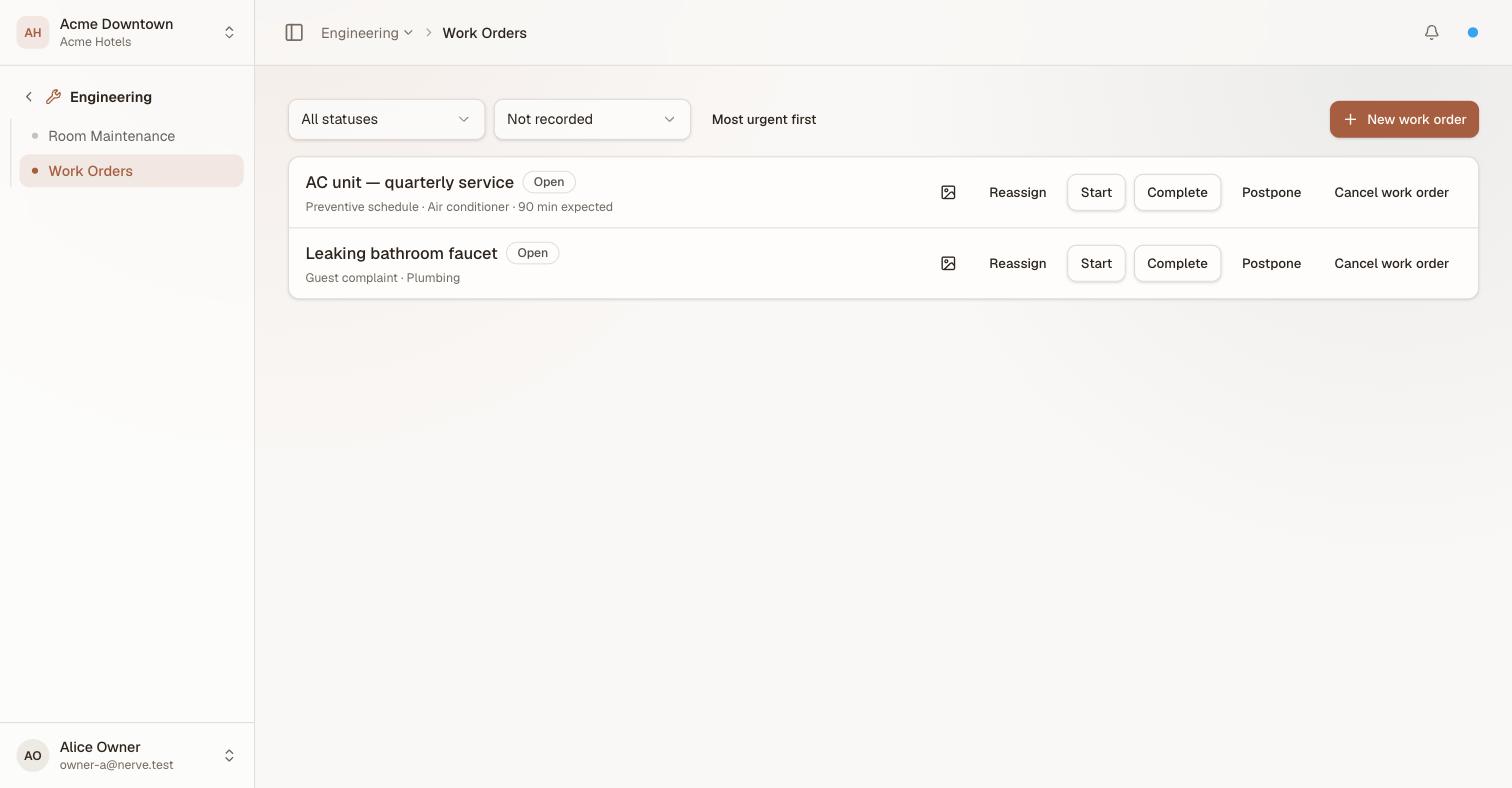
The worklist. Each row states where the job came from, what it is against and how long it should take, with every action it currently allows on the right.
Log a work order#
- Select New work order.
- Choose the source of request — Guest complaint, Housekeeping inspection, Night audit, Walk-through, or Other. This is what tells two otherwise-identical "AC not cooling" rows apart on the worklist.
- Choose the engineering object — Air conditioner, Water heater, Lift, Lighting, Plumbing, Furniture, Electronics, or Other.
- Set the urgency.
- Type a title and, if useful, a longer description.
- Attach it to a room, or leave that as No room and name a location instead.
- Select Save.
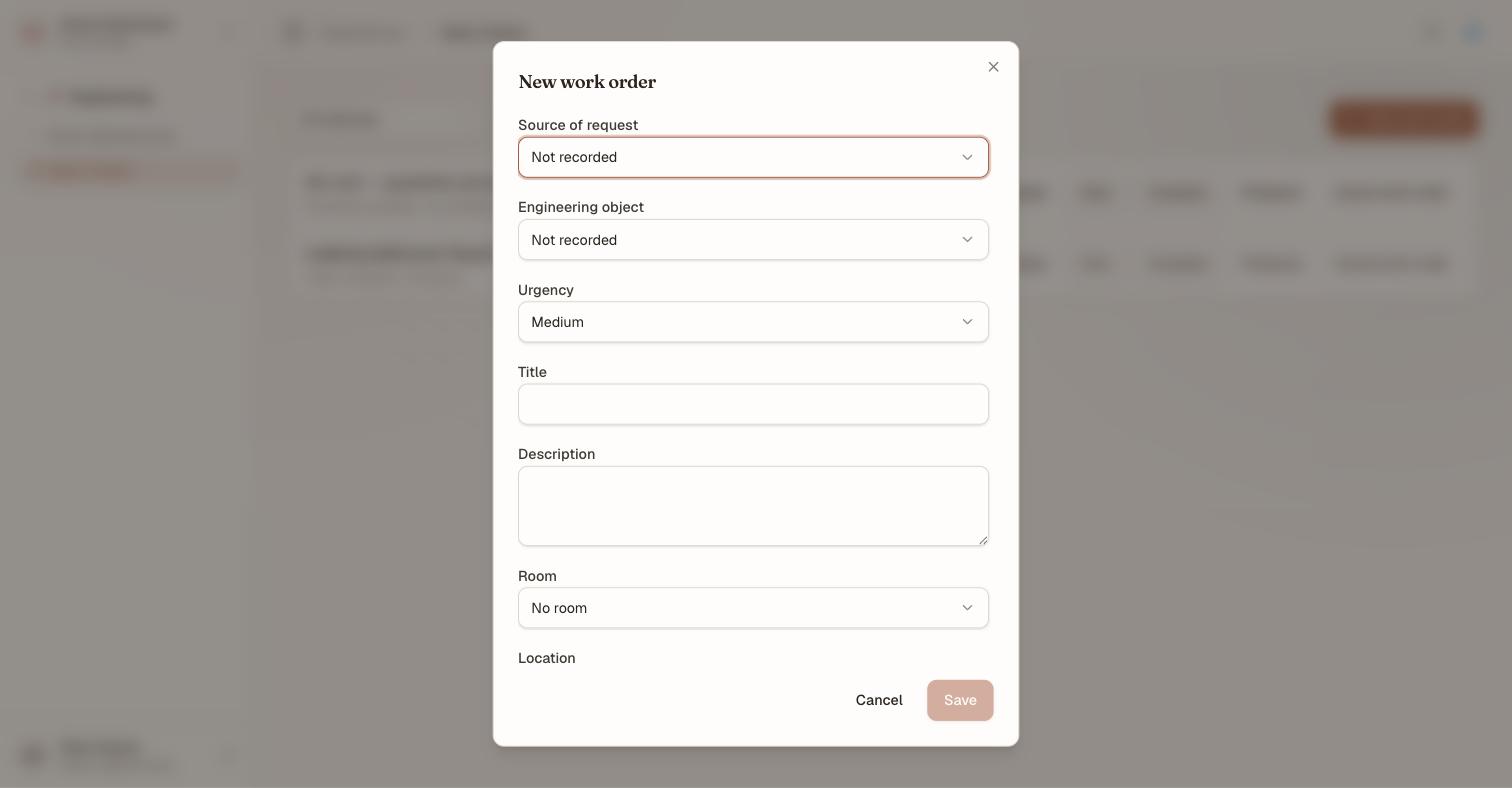
Urgency sits above the description because it changes where the job lands in the queue, not just how it reads.
The object you pick does two things automatically. If your house has recorded a standard repair duration for that object and job type, the work order opens with that expected duration already filled in — nobody has to guess how long an air-conditioner repair should take before it visibly overruns. And if the object carries a default owner or department, the work order is pre-assigned to them rather than landing unowned.
Set the urgency, and work the queue by it#
Urgency comes from your house's own engineering_urgency reference list, not from a fixed set of levels baked into the product. That matters for the sort: Most urgent first orders the worklist by the resolved order of your catalog, so a house that runs three tiers and a house that runs five each get their own ranking rather than one somebody else chose. Inside a tier, newest first.
The urgency filter beside it narrows to a single tier — "show me everything critical" — and All urgencies puts it back.
Say where the work is, when it is not a room#
Not every job is in a guest room. A work order can carry a free-text location instead — third-floor corridor, plant room, back office — and leave the room selector at No room.
Before this, plant-room work either had to be attached to an unrelated room or written into the description where nothing could read it. A location is a field, so the worklist shows it and a technician knows where to go.
Attach photos#
Select Photos on a work order to add images to it — up to 5 MB each, with a per-work-order limit the dialog states. Remove one with Remove photo.
A photo is worth having on both ends of the job: what the damage looked like when it was reported, and what it looked like when it was signed off. A work order with no photos says so plainly rather than showing an empty frame.
Update a work order's status#
A work order moves through five states: Open → In progress → Completed, or Open / In progress → Cancelled, with Postponed as a pause on the way.
- Start moves an open work order to in progress.
- Complete closes it out. Completing is also where the actual duration is recorded, so a repeatedly-overrunning job type is visible in the numbers, not just in memory.
- Cancel work order closes it without completing the work — for a duplicate report or a job that turned out not to be needed.
Pause a job that is blocked#
A part is on order. The contractor cannot come until Thursday. The job is not finished, and it is not cancelled either — it is postponed.
- Select Postpone on the work order.
- Give a reason.
The row carries On hold: <reason> from then on, and Resume puts it back into the queue when the reason clears.
สำคัญ
A postponed job stays open and keeps any room it has blocked. It is paused, not cancelled — so a room held out of service for a repair waiting on a part stays held. Cancelling instead would quietly return the room to availability with the fault still in it, which is exactly the outcome this state exists to prevent.
Reassign a work order#
Select Reassign on any row to change who owns it — the owner, the department, or both. This is the tool for the routine handoffs a shift produces: a technician goes off shift with three open jobs, a specialist needs to take over a lift repair, a department needs to pick up work nobody has claimed yet. Every reassignment is on the audit trail, so "who was this with, and when" is always answerable.
Standard repair durations#
Settings → Engineering → Maintenance → Repair durations is where a house records how long a job type against an object is expected to take, in minutes — air_conditioner / filter_change, plumbing / leak_repair, and so on. A duration is either an org default, shared by every property, or a hotel override for one property whose jobs genuinely take longer or shorter than the rest of the portfolio. When both exist for the same object/job-type pair, the hotel's own row is what a work order picks up.
This list only feeds the expected duration a new work order opens with — nothing blocks a job from running long. It exists so overruns are visible, not so they are prevented.
Preventive maintenance: maintenance objects#
Reactive work orders wait for something to break. Settings → Engineering → Maintenance → Maintenance objects is the planned half: a piece of equipment — a lift, a water heater, a fire system — with a recurrence and a checklist, so the work happens on a schedule instead of depending on someone remembering.
- Select New maintenance object.
- Name it, and choose the engineering object it is against.
- Set the recurrence: an interval in days (a lift's monthly service) or a usage threshold (serviced every N uses, for equipment with a meter).
- Add the checklist — one line per step a generated work order should carry.
- Select Save.
Each object tracks its own next due date. Select Generate due work orders to turn every object that has reached its due date into an open work order, with the checklist carried across as its description and the source stamped preventive_schedule — the one fact that tells a generated job apart from a reactive one on the worklist.
หมายเหตุ
Usage-based recurrence is recorded today but does not yet generate work orders on its own — advancing a usage counter depends on equipment-meter tracking that has not shipped. An interval-based object generates on schedule now; a usage-based object stays visible and editable and will start generating once that meter lands.
Who can reach these screens#
Work Orders and the Maintenance setup screen share the same gate as Room Maintenance: frontdesk.room.block or engineering.maintenance.manage. Anyone who can already take a room out of order can also log and manage the work behind it — engineering did not get a narrower door than the rack it feeds.
Both screens also need the Engineering app switched on for the property — see enabling apps for a property.
What's next#
- Take a room out of order — where a work order's room block, if it has one, is actually held
- Maintenance setup — the durations and schedules behind a new work order
- Reference data — where source, object and the
engineering_urgencylist live house-wide - Trace notes — for a dated reminder that needs no trade, part or schedule
- The room rack — where a room's block is read during a shift