เริ่มต้นใช้งาน
Why your menu differs from a colleague's
Role, app installation and context all have to line up before a screen appears — how to tell which of the three is missing.
อัปเดตล่าสุด
Who this is for: Owner and Manager — diagnosing this needs no permission; changing a role requires
org.roles.manage, and installing an app requiresapps.manage— see installing and enabling apps for a property.
Two people at the same hotel see different menus, and both are correct. This is the single most common thing new teams ask about, so it is worth understanding once rather than raising three tickets about.
Three things must all be true for a screen to appear in someone's sidebar:
- Their role carries the permission that screen requires.
- The app that owns the screen is installed on that property.
- They are in a context — an organisation and a property — where that role applies.
Those three are the ones you can check yourself, and they account for almost every missing menu item. There is a fourth, held by Nerve rather than by you — see below.
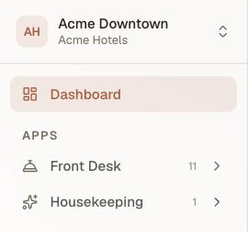
A Front Desk account at Acme Downtown. Six apps are installed for this property; only the two this role can reach are listed at all.
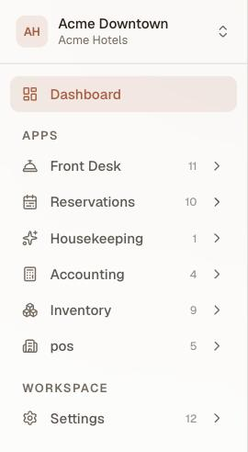
An Owner, at the same property, at the same moment. Reason 2 is identical for both — the same six apps are installed for this property whoever is looking — so everything between these two pictures is reason 1.
Work out which one is missing#
Start with the person who cannot see the screen, in the context where they expect it.
- Check the context. Look at the property switcher in the sidebar header. Is it naming the property you both mean? A Manager at one organisation and read-only at another has two different menus, correctly.
- Check the app. Open Integrations → App Directory — every app carries an Installed badge when it is on for this property. If you cannot reach the Directory yourself, check by elimination instead: does an Owner at that property see the group? If nobody does, and the Directory shows it as not installed (or Not in plan), that is your answer.
- Check the permission. There is no self-service screen that lists your own resolved permission set. Compare against the docs instead — every page in this documentation names its screen's required permission on its first line — or ask whoever manages Team to check the role assignment directly.
When all three line up#
If the context is right, the app is installed and you hold the permission, and the screen is still absent, do not assume a bug yet. There is a fourth gate, and it is not yours to inspect.
Nerve releases some features dark and switches them on progressively. A feature can be finished, deployed and sitting in the product while still being off for your organisation — turned on later for a group of customers at a time, with no new release in between. While it is off, it behaves exactly like a screen you have no permission for: it is absent from the sidebar, and its URL returns the same unauthorized state.
That last part is deliberate. A screen that announced itself as merely not switched on for you yet would be telling every visitor what Nerve is about to ship, so an unlaunched feature and a forbidden one are indistinguishable from the outside. It also means you cannot tell the two apart by probing.
So the escalation is:
- Confirm the three checks above — context, app, permission.
- If they all pass, ask Nerve whether the feature is switched on for your organisation.
- If it is, then it is a bug worth reporting.
หมายเหตุ
Being switched on is not the same as being paid for. What your plan includes is a separate question from whether a feature has reached you yet — an app outside your plan shows a Not in plan badge right on the Directory card, and the answer there is an upgrade, not a bug report.
Know what a role is#
A role is a bundle of permissions granted to a member at a scope. Nerve ships five — Owner, Manager, Front Desk, Accountant, Read-only — and they are configurable per organisation: what your house calls Manager may not be what the defaults call Manager.
So phrase questions in terms of the permission rather than the role name. "Does Sam hold frontdesk.checkin?" has an answer; "is Sam a Manager?" does not, quite.
The full default bundles, and the permission behind every screen, are in roles and what each one can do.
หมายเหตุ
A member can hold more than one role, and the result is the union of them. Adding a second role can only ever add permissions, never remove them — which is why granting an extra role is a safe way to unblock someone quickly, and a poor way to restrict them.
Understand what hiding does and does not mean#
สำคัญ
The sidebar is a convenience. It is not the security boundary.
The menu is built on the server from the resolved permission set, and every screen behind it enforces the same permission independently. Typing a URL you have no permission for returns an unauthorized state — one that does not reveal whether any data exists behind it, so probing a URL tells an outsider nothing.
That also means the reverse is safe to rely on: if you can see a screen, you are meant to be able to.
Choose a role when you invite someone#
A quick starting map — the defaults, which your organisation may have changed:
| The person | Start with |
|---|---|
| Runs the company | Owner |
| Runs the hotel day to day | Manager |
| Works the desk | Front Desk — which also carries the Housekeeping board |
| Keeps the books | Accountant |
| Needs to look, not touch | Read-only |
Scope the membership to one property when the person only works at one. It is the cleanest way to make sure their menu is the menu they need.
เคล็ดลับ
Grant the narrow role first and widen it when someone asks. Widening is one edit; discovering months later that a desk agent could edit rates is a conversation.
What's next#
- Roles and what each one can do — the full default bundles and the permission behind every screen
- Sign in and find your way around — reading the sidebar and the Dashboard
- Your first week on Nerve — where inviting the team sits in the setup order