Getting Started
Workspaces, organisations and properties
How an organisation, a property and your active context relate — and what changes when you switch between them mid-shift.
Last updated
Who this is for: everyone — no permission is required to switch between contexts you already have access to. Where: the picker after sign-in, and the property switcher at the top of the sidebar
Nerve has two levels of tenancy:
- An organisation is the company. It owns the members, the roles and the properties.
- A property — a hotel — is the thing you operate. Rooms, guests, reservations and folios all belong to one.
Your active context is which pair you are currently working in. Almost everything on screen is scoped to it, and it is named in the sidebar header at the top of the property switcher.
Choose where to work#
An account reaching more than one organisation or property lands on your portfolio — /portfolio — after sign-in: one table of every property you reach, with the way in on the row itself and how each one is doing beside it. It replaced an older picker that only listed properties; this page answers "where do you want to work" and "how is everything doing" at once, before you have chosen a workspace.
- Find the organisation. Each is headed by its name, a realm badge (Customer, or Managed if you reach it through an operator link — see operator links), and a property count.
- Under it, one row per property: its name and time zone, the apps enabled there, and — where your role and the property carry the right permissions — its rooms, in-house count, arrivals, departures, occupancy, ADR and room revenue for a rolling 30-night window.
- Select Open on a row to enter that property. You land on the Dashboard in that context.
A dash in a figures column means one of two things: you do not hold the permission that column needs at that property (org.portfolio.read gates rooms/in-house/arrivals/departures, rms.analytics.read gates occupancy/ADR/revenue), or the property's figures could not be loaded on this pass. Either way, Open still works — entering a workspace never waits on, or fails with, the figures.
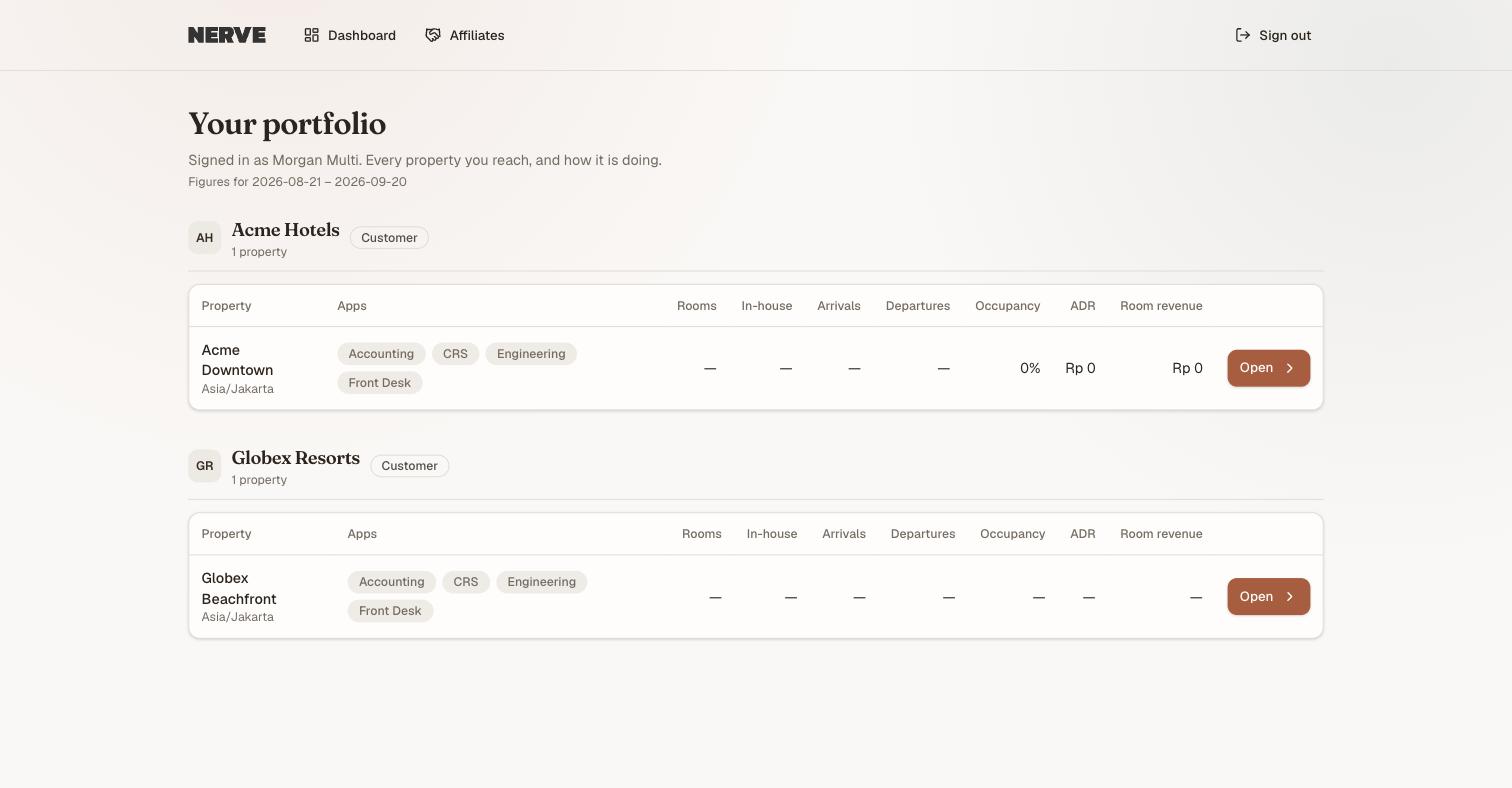
Every property you reach, one table. There is no group total here — each row is that property's own position, in its own currency and time zone; nothing is summed across properties.
An account reaching exactly one organisation with exactly one property never sees this: it resolves straight through to the Dashboard.
Two more affordances live on this page, not as rows:
- A Manage organisation button on an organisation you can administer (
org.manage) — it enters that organisation at org level, with no property selected. - Affiliates, in the page header, for an account that is also an affiliate partner. Selecting it asks for your password again. That is a realm boundary, not a bug — see realms.
An organisation with no properties yet offers an Organisation workspace row in place of a table.
Note
If a whole organisation's slice could not be read, its table carries a banner saying so rather than the page blanking. The other organisations still render normally, and every row still has a working Open.
The old address /select still resolves — it redirects here. It is not only a bookmark: it is also where an unauthorized 403 bounces you back to.
Switch property mid-shift#
- Select the property switcher at the top of the sidebar.
- Choose an organisation and property from the list. The one you are in is ticked.
- Or select View all properties… to go back to the full picker.
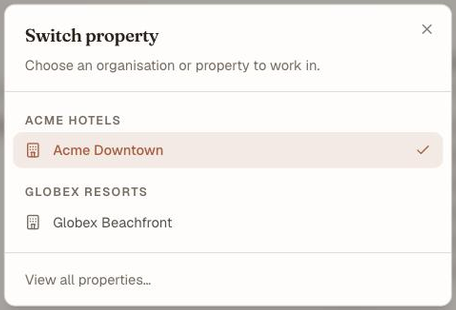
The switcher. Organisations are the headings, properties are the rows, and the tick marks where you are now.
Switching takes effect immediately and without a full page reload.
Know what switching invalidates#
Changing context re-resolves everything that depends on it:
- Your navigation is rebuilt. A different role or a different set of enabled apps means a different sidebar. Menu items appearing or disappearing across a switch is the system working.
- Every list re-fetches. Reservations, the rack, folios — the previous property's rows are gone, replaced by this one's or by an empty state. Nothing bleeds across.
- Your permissions are re-resolved. You may be a Manager in one organisation and read-only in another; the actions offered change to match.

One account, two properties. Both have the same six apps switched on — what differs is the role, so four groups and the whole Workspace section stop being listed. Nothing broke.
Important
An empty screen straight after a switch usually means the new property genuinely has no data of that kind — not that the switch failed. Check the sidebar header names the property you expected before going looking for a bug.
Follow a deep link#
A bookmarked or pasted URL — a rack, a folio, an arrivals list — resolves its context before it renders anything. You see a short loading state, then the page, for the right property. There is never a flash of another organisation's data or of an unauthorized screen on the way.
The same holds after a hard refresh, and after signing in from a deep link: you are taken to the page you asked for, not dropped at the top.
Note
If your access to the remembered property has been removed, the app says so and offers Back to properties rather than half-loading. That state is deliberately non-revealing — it does not say whether the property still exists.
What's next#
- Why your menu differs from a colleague's — what a role does inside a context
- Realms — why some accounts are asked to re-authenticate when they cross into another portal
- Your first week on Nerve — setting up a property of your own